Dotfiles: the small text files that make a computer mine
2026-11-18, originally published on pablomurad.com.
A fresh computer works, but it isn't mine yet. The shell has the wrong prompt, git doesn't know my name, the editor opens with someone else's defaults, the terminal font is the wrong size and none of my shortcuts exist. What turns that machine into my machine fits in a few dozen small text files. They're called dotfiles, and they're one of the things I care about most in my whole setup. They live in a repository, and one command puts them on a new computer.
This post is about them: what they are, where the dot came from, how to start a set, how I keep mine, and what they can and can't do.
What dotfiles are #
Dotfiles are the configuration files that programs read from the home folder. On Unix-like systems they traditionally start with a dot, which is where the name comes from:
-
~/.bashrcand~/.zshrc, for the shell -
~/.gitconfig, for git -
~/.vimrc, for Vim -
~/.ssh/config, for SSH hosts and shortcuts -
~/.tmux.conf, for tmux
Newer programs keep their files in ~/.config/ instead: ~/.config/nvim/, ~/.config/kitty/kitty.conf, ~/.config/git/config. Same idea, tidier place. People still call all of it dotfiles.
They're plain text, meant to be read and edited by a person. That's what makes them special. A setting clicked in a menu is gone when the machine dies. A line in a text file can be copied, commented, versioned and carried anywhere.
Why they start with a dot #
The dot started out as a shortcut.
In the early days of Unix, when the file system became hierarchical, every directory got two special entries: . for the directory itself and .. for its parent. They showed up every time someone typed ls, so a check was added to hide them. Rob Pike told the story years later: the right test would have compared the name with . and .., but the one that went in was shorter and only looked at the first character.
if (name[0] == '.') continue;Any file whose name started with a dot vanished from ls. Programmers noticed, and started putting their configuration files in everyone's home folder with a dot in front, so they'd stay out of sight. Pike called the hidden file "an unintended consequence" and "certainly a mistake", and pointed out that Plan 9, the system he worked on after Unix, had no dotfiles at all. Configuration lived in normal folders like $HOME/lib.
The other half of the name is older still. The rc in .bashrc, .vimrc and .zshrc comes from RUNCOM, a program written around 1963 for CTSS, a time-sharing system at MIT.1 It ran a list of commands stored in a file, and those files came to be called "runcoms". Kernighan and Ritchie described the rc in Unix as "a fossil from that usage". So every .bashrc carries a word from the early sixties.
The home folder got crowded #
Since any program could drop a dotfile in the home folder, many did. Pike counted about a hundred in his own and didn't know what most of them were for.
The modern answer is the XDG Base Directory specification, from freedesktop.org. It defines where each kind of file should go:
- configuration in
~/.config(or wherever$XDG_CONFIG_HOMEpoints) - data in
~/.local/share - state, like history and logs, in
~/.local/state - cache in
~/.cache
Most recent tools follow it, and it helps a lot with dotfiles: everything worth saving sits under ~/.config, and the cache, which nobody wants to save, sits somewhere else. Plenty of older programs still ignore it, which is why ~ is still full of dots.
Why they matter so much to me #
Every line in a dotfile is a decision someone made once. An alias that got tiring to type, a git setting that stopped a mistake from happening again, a shortcut that matches how the hands move. Over the years those decisions pile up into an environment that fits its owner, and that environment is worth more than any single machine.
Keeping them in a repository brings a few things at once:
- A new machine in minutes. Clone, run one command, and the computer behaves like home.
- The same environment everywhere. Laptop, desktop, a server reached over SSH, a VM that's gone tomorrow.
- History. Git tells when a setting changed and why, as long as the commit messages are decent.
-
Courage to experiment. If a new config breaks everything,
git checkoutbrings the old one back.
There's a whole culture around this. People publish their dotfiles on GitHub, and dotfiles.github.io works as an unofficial guide, with tutorials, tools and other people's setups to learn from. GitHub even builds it into Codespaces: point it at a dotfiles repository and every new codespace clones it and runs its install.sh (or bootstrap.sh, setup.sh and a few other names). If there's no script, it links every file that starts with a dot into the home folder.
How I keep mine #
My dotfiles live in a private repository managed with chezmoi. It covers two very different systems: Omarchy, the Arch Linux setup with Hyprland, and Windows. On a new Linux machine, restoring everything looks like this:
chezmoi init --apply runawaydevil/dotfiles
~/.local/share/chezmoi/meta/restore.sh
hyprctl reload
The first line clones the repository and writes every file to its place. The second installs packages, themes, plugins and services from lists kept in the repository, in steps I can also run one at a time. On Windows the same first line works, and a PowerShell script does the equivalent with winget, Scoop and Chocolatey.
A file called .chezmoiignore decides what goes where. Hyprland, the terminals (Alacritty, foot, Ghostty and kitty), Neovim, Zed, mise and the small scripts in ~/.local/bin only exist on Linux. The Windows Terminal settings and the PowerShell profiles only exist on Windows. The git config is shared, as a template with the few lines that change per system:
{{ if eq .chezmoi.os "windows" }}
# lines only Windows gets
{{ end }}
Saving changes is a snapshot script and a normal git commit. Even the wallpapers are in there, a folder of old seascapes by Aivazovsky, Hokusai, Turner and Winslow Homer, so a new machine looks like home from the first boot.
What stays out matters as much. Themes and plugins I download from elsewhere go in as a list of URLs, and binaries that come from packages are installed by the restore script. The repository stores my decisions and leaves out whatever can be downloaded again.
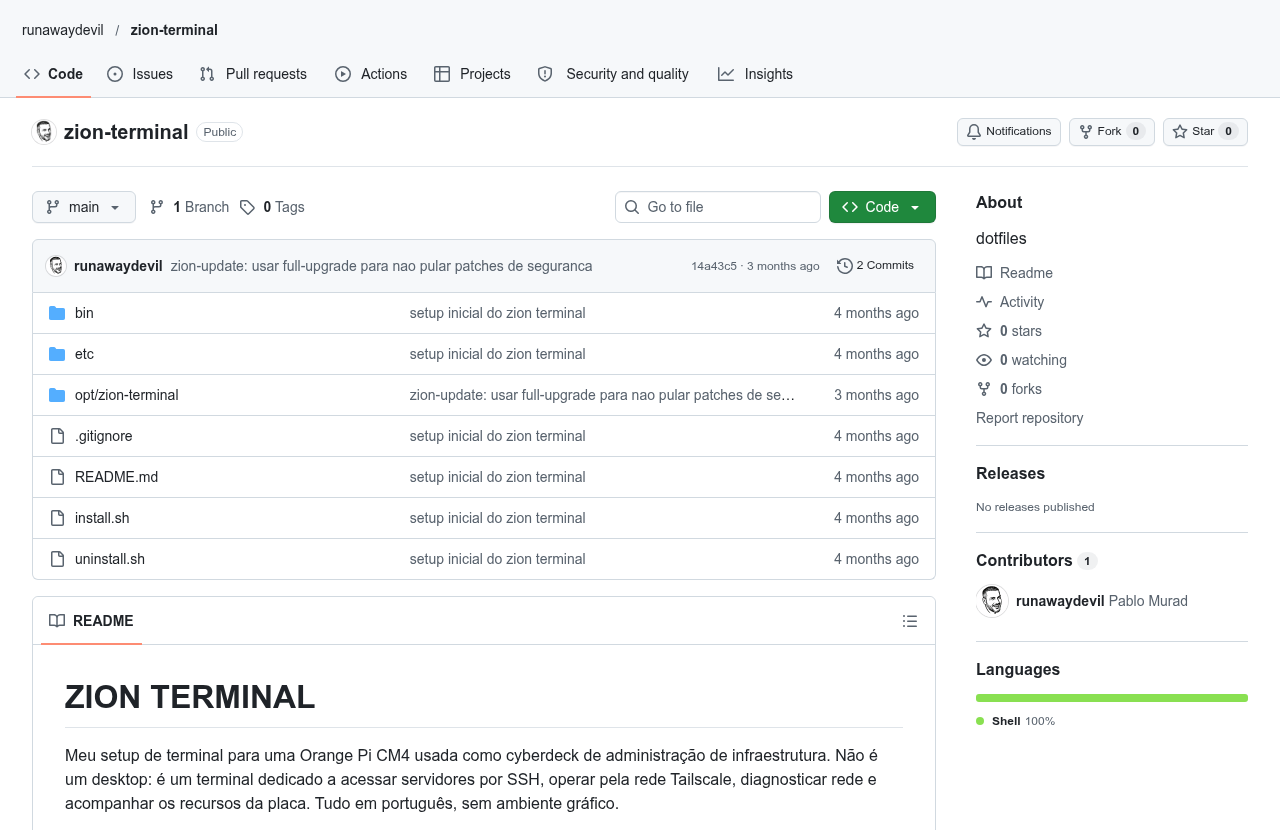
I have a second, smaller example that's public: Zion Terminal, the terminal setup for an Orange Pi CM4 I use as a cyberdeck. It started as dotfiles and grew into a small tool, with an install.sh that can run twice without breaking anything and an uninstall.sh with a --dry-run flag.
How to start a set #
Step 1: find what has actually changed #
Copying someone's famous repository is the wrong start. The right one is the machine at hand, and a list of the files edited by hand. For most people the first batch is short:
- the shell:
~/.bashrcor~/.zshrc - git:
~/.gitconfig - the editor:
~/.vimrc,~/.config/nvim/or the editor's settings file - the terminal: something in
~/.config/
Three or four files are a perfectly good first commit.
Step 2: pick a way to manage them #
There are four common approaches, from the simplest to the most capable.
A folder and symbolic links. Move the real file into a folder that's a git repository, and leave a link in its old place:
mkdir ~/dotfiles
cd ~/dotfiles
git init
mv ~/.bashrc ~/dotfiles/bashrc
ln -s ~/dotfiles/bashrc ~/.bashrc
The program still finds ~/.bashrc, which now points into the repository. It works anywhere and needs nothing installed, but on a new machine every link has to be recreated by hand, so sooner or later a script shows up for it.
GNU Stow. Stow describes itself as "a symlink farm manager", and it makes the links. The repository gets one folder per program, mirroring where the files live in the home folder:
~/dotfiles/bash/.bashrc
~/dotfiles/git/.gitconfig
~/dotfiles/nvim/.config/nvim/init.lua
Then, from inside ~/dotfiles:
stow bash git nvimStow links each file into the home folder in the right place. stow -D nvim removes the links again. It's small, old and dependable, and a good choice for a single system.
A bare git repository. This trick became popular through a Hacker News comment in 2016.2 The home folder itself becomes the working tree, with the repository's internals tucked into a hidden folder, and an alias keeps it from interfering with other projects:
git init --bare $HOME/.cfg
alias config='/usr/bin/git --git-dir=$HOME/.cfg/ --work-tree=$HOME'
config config --local status.showUntrackedFiles no
config add ~/.bashrc
config commit -m "Add bashrc"
No links and no extra tools. The catch is remembering to type config instead of git, and a careless config add . would try to add the whole home folder.
chezmoi. A dedicated tool, and the one I use. It keeps a copy of the files in its own repository and writes them out on chezmoi apply. It handles templates for differences between machines, can read secrets from password managers, can encrypt whole files with age or gpg and can run scripts, which covers installing packages too. The basic loop:
chezmoi init
chezmoi add ~/.bashrc
chezmoi edit ~/.bashrc
chezmoi apply
chezmoi cd
git add -A
git commit -m "Add bashrc"
git push
On a new machine, chezmoi init --apply your-github-user does the rest.
For one system and a handful of files, Stow is enough. For someone moving between Linux, macOS and Windows, or with files that must differ per machine, chezmoi pays for itself quickly.
Step 3: write the restore script #
Whatever the tool, an install.sh at the root of the repository should get a clean machine to the full environment: install the needed packages, link or apply the files, set the shell. It has to be safe to run more than once. A script that breaks on the second run becomes a script nobody dares to run, and then it doesn't help.
Step 4: keep the habit #
A changed setting gets committed the same day. Dotfiles rot the same way notes do: the improvement that never made it into the repository is lost on the next machine.
Limitations #
Secrets. This is the big one. SSH keys, API tokens, .netrc, cloud credentials and shell history do not go in the repository, private or not. A private repository is still a copy of those secrets on someone else's server, and one wrong click makes it public. Secrets belong in a password manager or encrypted, pulled in by the tool at apply time. Before the first push, git log -p is worth a careful read, looking for anything that looks like a key.
Machines are different. Paths, package managers, screen sizes and installed tools change from one computer to the next, and a config that's perfect on the laptop can error out on a server. Templates and per-system ignore lists fix most of it, at the cost of some complexity.
Not everything is a text file. Some programs keep settings in a database, the Windows registry or macOS property lists, and some rewrite their own config file at every change in the interface, so every commit comes with noise nobody wrote.
Other people's dotfiles. Copying a famous setup brings hundreds of lines nobody understands, and some popular repositories install themselves with curl ... | bash, which means running a stranger's script without reading it. Read first, take what makes sense, leave the rest.
The rabbit hole. Tweaking dotfiles is fun, and it can eat whole evenings that were supposed to go to the work the setup exists for.
And what they can do #
The other side is that almost anything that can be written down fits in a dotfiles repository. Mine has shell and editor configs, and also systemd user services, small scripts, lists of packages to install, the window manager layout and the wallpapers. Anything that's text, or that can be fetched again from a list, can come along.
It can also grow well past configuration. Zion Terminal turned into a little command-line tool. Codespaces turns a repository into a setup that follows its owner into the cloud. Omarchy itself is, in my reading, a very well-organized set of dotfiles and install scripts that turns a plain Arch install into a complete desktop. Nix with home-manager goes further still and describes an entire user environment, programs included, in files.
The limit is patience and discipline with secrets. Everything else can be versioned.
Notes
-
RUNCOM was written by Louis Pouzin, who also coined the word "shell" for a program that reads commands and runs them. A few years later he designed CYCLADES, a French network whose ideas fed straight into TCP/IP. ↩
-
The comment was by a user called StreakyCobra, in a 2016 thread about managing dotfiles, and it was short enough to fit on a screen. Tutorials have been repeating it ever since. ↩
Original: https://pablomurad.com/dotfiles-the-files-that-make-a-computer-mine/